Migration
6R Migration Strategies
- Rehosting: Lift and Shift (app, db etc.). Migrate as-is. Cloud can save 30% cost
- Replatform: Migrate on-prem database to RDS (or) Java app to Elastic Beanstalk
- Repurchase: Drop and shop. Move to a different product in SaaS. HR to Workday
- Refactoring/Rearchitecting: Reimagine using Cloud-Native. Scale, Performance etc.
- Retire: Turn off things you don't need. Save cost.
- Retain: Too complicated, Cost reason.
AWS Storage Gateway
- Use cases: Disaster recovery, backup & restore, tiered storage
- Types: File, Volume, Tape and Amazon FSx File Gateway
- If you are restoring an AWS Storage Gateway volume snapshot, you can choose to restore the snapshot as an AWS Storage Gateway volume or as an Amazon EBS volume.
- AWS Backup integrates with both services, and any AWS Storage Gateway snapshot can be restored to either an AWS Storage Gateway volume or an Amazon EBS volume.
You can run AWS Storage Gateway either on-premises as a VM appliance, as a hardware appliance, or in AWS as an Amazon Elastic Compute Cloud (Amazon EC2) instance.
Storage Gateway vs Data Sync
- Use AWS DataSync to migrate existing data to Amazon S3
- and subsequently use the File Gateway configuration of AWS Storage Gateway to retain access to the migrated data and for ongoing updates from your on-premises file-based applications.
You can use a combination of DataSync and File Gateway to minimize your on-premises infrastructure while seamlessly connecting on-premises applications to your cloud storage.
File Gateway
- Virtual Machine to bridge between NFS and S3
- S3 buckets are accessible using the NFS and SMB protocol
- Most recent data is cached in file gateway
- EC2 can use NFS/SMB and File Gateway appliance to access S3 data (coming from on-prem)
- Enable S3 Object Versioning to maintain multiple versions
- Lifecycle policies, Object Lock can also be applied (thanks to S3)
Volume Gateway
- Block storage using iSCSI protocol backed by S3
- Cached volumes: low latency access to most recent data, full data on S3
- Stored volumes: entire dataset is on premise, scheduled backups to S3
- Can create EBS snapshots from the volumes and restore as EBS!
- Up to 32 volumes per gateway
- Each volume up to 32TB in cached mode (1PB per Gateway)
- Each volume up to 16 TB in stored mode (512TB per Gateway)
Cached volume gateway provides you low-latency access to your frequently accessed data but not to the entire data.
By using stored volumes, you can store your primary data locally, while asynchronously back up that data to AWS. Stored volumes provide your on-premises applications with low-latency access to the entire data sets.
In the cached mode, your primary data is written to S3, while retaining your frequently accessed data locally in a cache for low-latency access. In the stored mode, your primary data is stored locally and your entire dataset is available for low-latency access while asynchronously backed up to AWS.
Volume Gateway vs File Gateway
File Gateway enables you to store and retrieve objects in Amazon S3 using file protocols such as NFS and SMB. Volume Gateway stores your data locally in the gateway and syncs them to Amazon S3. It also allows you to take point-in-time copies of your volumes with EBS snapshots which you can restore and mount to your appliance as iSCSI device.
Tape Gateway
- Some companies have backup processes using physical tapes.
- With Tape Gateway, companies use the same processes but in the cloud.
- Virtual Tape Library (VTL) is backed by Amazon S3 and Glacier.
- Back up data using existing tape-based processes (and iSCSI interface).
- Works with leading backup software vendors.
- You can’t access single file within tapes. You need to restore the tape entirely.
- You can setup a File Gateway appliance on-premises itself (or) in AWS as an EC2 instance.
Amazon FSx Gateway
- Native access to Amazon FSx for Windows File Server
- Local cache for frequently accessed data
- Windows native compatibility (SMB, NTFS, Active Directory...)
- Useful for group file shares and home directories
Snow family
- Snow Mobile (Exabytes) > Snowball Edge (80 TB) > Snowcone (8 TB)
- Snowcone can be used in space constrained environments (like drone)
- Each snowmobile has 100 PB of data
- Snowcone: 8 TB Snowball edge storage optimized: 80 TB Snowmobile: < 100 PB
- Use AWS OpsHub to manage Snow family device
Snowball Edge Performance
In general, you can improve the transfer speed from your data source to the device in the following ways. This following list is ordered from largest to smallest positive impact on performance:
- Perform multiple write operations at one time – To do this, run each command from multiple terminal windows on a computer with a network connection to a single AWS Snowball Edge device.
- Transfer small files in batches – Each copy operation has some overhead because of encryption. To speed up the process, batch files together in a single archive. When you batch files together, they can be auto-extracted when they are imported into Amazon S3. For more information, see Batching Small Files.
- Don't perform other operations on files during transfer – Renaming files during transfer, changing their metadata, or writing data to the files during a copy operation has a negative impact on transfer performance. We recommend that your files remain in a static state while you transfer them.
- Reduce local network use – Your AWS Snowball Edge device communicates across your local network. So you can improve data transfer speeds by reducing other local network traffic between the AWS Snowball Edge device, the switch it's connected to, and the computer that hosts your data source.
- Eliminate unnecessary hops – We recommend that you set up your AWS Snowball Edge device, your data source, and the computer running the terminal connection between them so that they're the only machines communicating across a single switch. Doing so can improve data transfer speeds.
Recommendations:
- Perform multiple write operations at one time - from multiple terminals
- Transfer small files in batches – zip up small files until at least 1MB
- Don't perform other operations on files during transfer
- Reduce local network use
- Eliminate unnecessary hops – directly connect to the compute
The data transfer rate using the file interface is typically between 25 MB/s and 40 MB/s. If you need to transfer data faster than this, use the Amazon S3 Adapter for Snowball, which has a data transfer rate typically between 250 MB/s and 400 MB/s
If the connectivity is over-burdened and if you have a short time window for migration, Snowball is often a good choice to move data.
Database Migration Service
- You must create an EC2 instance to perform the replication tasks
- Works over VPC Peering, VPN (site to site, software), Direct Connect
- Supports Full Load, Full Load + CDC, or CDC only
One useful pattern: Edge (snow device) to S3 to DMS to Target database.
DMS vs SCT
DMS traditionally moves smaller relational workloads (<10 TB) and MongoDB, whereas SCT is primarily used to migrate large data warehouse workloads. DMS supports ongoing replication to keep the target in sync with the source; SCT does not.
Oracle Data Warehouses can be migrated to RedShift using DMS and the Schema Conversion Tool (SCT).
Snowball + DMS
- You use the AWS Schema Conversion Tool (AWS SCT) to extract the data locally and move it to an Edge device.
- You ship the Edge device or devices back to AWS.
- After AWS receives your shipment, the Edge device automatically loads its data into an Amazon S3 bucket.
- AWS DMS takes the files and migrates the data to the target data store. If you are using change data capture (CDC), those updates are written to the Amazon S3 bucket and then applied to the target data store.
Disaster Recovery (DR)
- RPO: Recovery Point Objective - deals with data loss
- RTO: Recovery Time Objective - deals with time to recover
Strategies
- Backup and Restore (RTO is not a concern. High RPO)
- Pilot Light (Similar to Backup and Restore, but faster)
- Warm Standby (full system as a standby but reduced size, on failover scale up)
- Hot Site / Multi Site Approach (Fully minimized RTO, typically seconds, expensive)
DR Tips
Backup
- EBS Snapshots, RDS automated backups / Snapshots, etc…
- Regular pushes to S3 / S3 IA / Glacier, Lifecycle Policy, Cross Region Replication
- From on-premises: Snowball or Storage Gateway
High Availability
- Use Route53 to migrate DNS over from Region to Region
- RDS Multi-AZ, ElastiCache Multi-AZ, EFS, S3
- Site to Site VPN as a recovery from Direct Connect
Replication
- RDS Replication (Cross Region), AWS Aurora + Global Database
- Database replication from on-premises to RDS
- Storage Gateway
Automation
- CloudFormation / Elastic Beanstalk to re-create a whole new environment
- Recover / Reboot EC2 instances with CloudWatch if alarms fail
- AWS Lambda functions for customized automations
Chaos engineering
- AWS Fault Injection Simulator (FIS)
- A fully managed service for running fault injection experiments on AWS workloads
- Supports the following AWS services: EC2, ECS, EKS, RDS
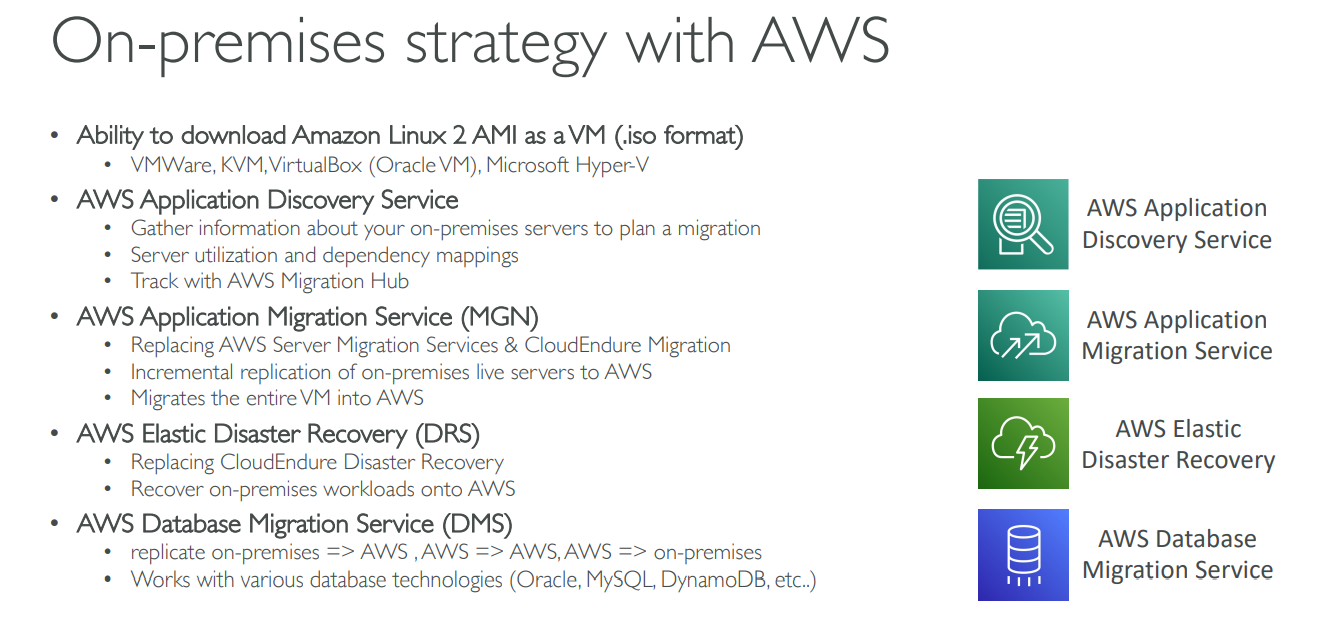
Server Migration Service (SMS)
- We recommend using AWS Server Migration Service (SMS) to migrate VMs from a vCenter environment to AWS.
- SMS automates the migration process by replicating on-premises VMs incrementally and converting them to Amazon machine images (AMIs).
- You can continue using your on-premises VMs while migration is in progress.
- AWS SMS supports up to 16 TB volumes so you can use it to migrate the data volumes as well (upto 16 TB).
If any of the following are true, you should consider using AWS SMS: - You are using vCenter 6.5 Server. - You want to specify BYOL licenses during migration. - You are interested in migrating VMs to Amazon EC2. - You want to use incremental migration.
AWS SMS is primarily designed to migrate on-premises VMware vSphere, Microsoft Hyper-V/SCVMM, and Azure virtual machines to the AWS Cloud.
With support for incremental replication, AWS SMS allows fast, scalable testing of migrated servers. This can also be used to perform a final replication to synchronize the final changes before cutover.
Each server volume replicated is saved as a new Amazon Machine Image (AMI), which can be launched as an EC2 instance (virtual machine) in the AWS cloud. If you are using application groupings, Server Migration Service will launch the servers in a CloudFormation stack using an auto-generated CloudFormation template.
Multi-server migration provides you the ability to migrate entire application stacks as opposed to migrating each server individually. You can group servers into applications, replicate the entire application together, and monitor its migration status. You can also easily launch and configure the migrated application with an auto-generated CloudFormation Template.
SMS vs VM Import/Export
- AWS VM Import/Export does not support synching incremental changes from the on-premises environment to AWS.
Snowball based migration vs SMS
A possible solution for migration of VMs: - Migrate mission-critical VMs with AWS SMS. Export the other VMs locally and transfer them to Amazon S3 using AWS Snowball. - Use VM Import/Export to import the VMs into Amazon EC2
The VMs that are exported and transported using Snowball will be offline for several days in this scenario - for always available & incremental migration, this is not acceptable.
Application Migration (AWS MGN)
With AWS MGN, you can migrate your applications from physical infrastructure, VMware vSphere, Microsoft Hyper-V, Amazon Elastic Compute Cloud (Amazon EC2), Amazon Virtual Private Cloud (Amazon VPC), and other clouds to AWS.
AWS Application Migration Service (MGN) utilizes continuous, block-level replication and enables short cutover windows measured in minutes. AWS Server Migration Service (SMS) utilizes incremental, snapshot-based replication and enables cutover windows measured in hours.
AWS Application Migration Service (MGN) is a highly automated lift-and-shift (rehost) solution that simplifies, expedites, and reduces the cost of migrating applications to AWS. It enables companies to lift-and-shift a large number of physical, virtual, or cloud servers without compatibility issues, performance disruption, or long cutover windows. MGN replicates source servers into your AWS account
AWS MGN vs SMS
- AWS SMS is primarily designed to migrate on-premises VMware vSphere, Microsoft Hyper-V/SCVMM, and Azure virtual machines to the AWS Cloud.
- AWS Application Migration Service (AWS MGN) allows you to quickly lift-and-shift physical, virtual, or cloud servers to AWS.
If only VMs, SMS could be a good choice. VMs plus physical and other cloud servers, MGN is better.
Database Migration
When you use AWS SCT and an AWS Snowball Edge device, you migrate your data in two stages.
- First, you use the AWS SCT to process the data locally and then move that data to the AWS Snowball Edge device.
-
You then send the device to AWS using the AWS Snowball Edge process, and then AWS automatically loads the data into an Amazon S3 bucket.
-
Next, when the data is available on Amazon S3, you use AWS SCT to migrate the data to Amazon Redshift.
- Data extraction agents can work in the background while AWS SCT is closed. You manage your extraction agents by using AWS SCT.
- The extraction agents act as listeners. When they receive instructions from AWS SCT, they extract data from your data warehouse.
VM Export / Import
Exporting a VM file based on an Amazon Machine Image (AMI) is useful when you want to deploy a new, standardized instance in your on-site virtualization environment. You can export most AMIs to Citrix Xen, Microsoft Hyper-V, or VMware vSphere.
Use aws ec2 export-image command. The exported file is written to the specified S3 bucket using the following S3 key: prefixexport-ami-id.format (for example, my-export-bucket/exports/export-ami-1234567890abcdef0.ova).
To export from an instance, use the following command:
aws ec2 create-instance-export-task --instance-id instance-id --target-environment vmware --export-to-s3-task file://C:\file.json
aws ec2 export-image --image-id ami-id --disk-image-format VMDK --s3-export-location S3Bucket=my-export-bucket,S3Prefix=exports/
AWS Application Discovery Service
Plan migration projects by gathering information about on-premises data centers
- Agentless Discovery (AWS Agentless Discovery Connector)
- Agent-based Discovery (AWS Application Discovery Agent)
- Resulting data can be exported as CSV or viewed within AWS Migration Hub
- Analyze data using Athena
AWS Elastic Disaster Recovery Service (DRS)
- Quickly and easily recover your physical, virtual, and cloud-based servers into AWS
- Example: protect your most critical databases (including Oracle, MySQL, and SQL Server), enterprise apps (SAP), protect your data from ransomware attacks.
- Continuous block-level replication for your servers
S3 Sync
AWS CLI's S3 sync command can be used to migrate data on an ongoing basis from on-premises folder to S3.
aws s3 cp will copy all files, even if they already exist in the destination area. It also will not delete files from your destination if they are deleted from the source. aws s3 sync looks at the destination before copying files over and only copies over files that are new and updated.